Temporary table in NAV
I recently found a very interesting blog post about temporary tables by Vjekoslav Babic. It explains really good the different ways a temporary table is handled when used as a parameter . You can basically call a method with a table by value or by reference. When you are using by value the data in the table is copied to a new variable and when you are using by reference you are actual using the same variable as the calling method. This work as expected when not using temporary tables. When it comes to temporary tables you may get an unexpected behavior when using the “by reference”.
Here is an example
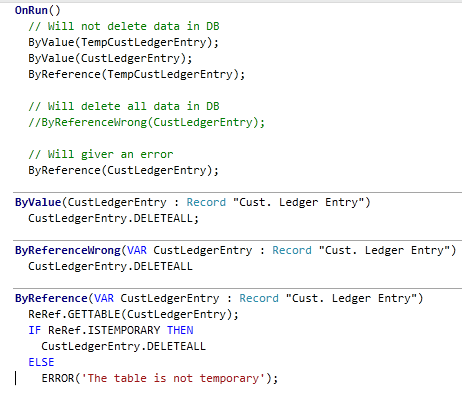
The “ByRefereceWrong” will actual delete all records if you are passing a none temporary record to it. A fixed version with verification can be found in “ByRefence” where we use record reference and the ISTEMPORARY method.
Vjekoslav blog post found here does cover some other problem areas as “phantom insert”. I would recommend reading the complete post.
Problem installing demo database
Saurav did get before me in writing this blog post. Have you ever seen below error when installing the demo database.
Could not connect to the SQL database. (-2147467259 master ). This can be caused by insufficient permissions. Indirect permissions through Windows group memberships may not work as expected when User Account Control (UAC) is turned on.
Few resolutions to the problem
1) UAC is turned on.
2) SQL server is not running
3) Your user doesn’t have sufficient privileges on the SQL server.
4) Old database file are left on the system.
Take a look at Saurav’s blog for the solutions. Saurav’s blog post is found here
Every time when adding/deleting a user the NAV service shuts down
Recently I run into a problem where NAV service did shut down every time I did add or delete a user.
The event log explain the problem like bellow. So it obvious that we of some reason can’t connect to the database.
Type: System.Data.SqlClient.SqlException
Class: 14
LineNumber: 1
Number: 916
State: 1
Source: .Net SqlClient Data Provider
ErrorCode: -2146232060
Message: The server principal “XX\YY” is not able to access the database “ZZ” under the current security context.
When looking at the security for database “ZZ” I found the same problem as the event log was pointing at, no trace of user “XX\YY” with gives the NAV service access to the database. It turns out that when adding or deleting a NAV user all user privileges is re-synced, and any user not part of the new list is deleted. And if the NAV service account is not part of the user list, NAV service can’t longer connect to database.
The solution is very simple. You have to make sure that the service account is added as a user in NAV under Tools – Security – Windows Logins. Followed by syncing logins.
Silent or unattended installation on NAV
What is silent or unattended installation
Simply said silent install is installation without any UI. In this case it’s about how to run “setup.exe” in silent mode. It’s recommended that you only run “setup.exe” when you install a new NAV installation, because the installer have been tested by them using this procedure only. So by that said it’s no longer supported to install from the different msi files directly. This is true for all NAV 2009 releases. The major problem you may run into if you are installing directly from the msi files is that you will not get prerequisites (as .Net, Report Viewer and so on) installed and you will also miss out one some pre installs checks (validating that you have everything needed as outlook).
How to-do it?
It’s very simple. “setup.exe” does support some different parameters for this purpose:
/quiet <– will turn of the UI
/log [filename] <– create a log text file in the specified location
/config [filename]<– point to the configuration file to use during the installation
/uninstall <– will simple un install the product
/repair <– repairs a bad installation
Change listener connetion error
“The Microsoft Dynamics NAV Server cannot connect the Change Listener to SQL Server because of the following error: user ‘NT AUTHORITY\NETWORK SERVICE’ failed when log in”.
This error may happen when you are attaching the database manually, or if database and NAV service is on two different machines. A variation of this may also happen if you setup NAV server to user domain user account. Luckily the solution is the same for all problems
Enabling the Object Change Listener Read more
The “OK” button is greyed out on RTC server selection window
Did decide to write this blog since this simple problem did take a lot of time for me to find the solution for, in the hope that it will save you from the same time eater.
The problem I did run into was that when starting the RTC client it could not connect to the service, since I had moved the service. Since the service had moved I did say “no” to the questions if RTC should try to connect again. In the address field in the “server selection window” I did type the new address into address field. The “OK” button was now greyed out, so I could not connect to the server.
After spending some time to try to figure it out how to un grey the “OK” button I found by simple press TAB in the address field make RTC to connect to the service and retrieve the companies on the service. Now the “OK” button was not greyed out anymore.
License for Dynamics NAV 2009 RTC problem
You do not have permission to run the ‘Microsoft Dynamics NAV Server’ system. Contact your system administrator to have your permissions changed
If you get this error when trying to start the RTC, it normally means it’s something wrong with the licenses.
Ensure that the license you are using have permission to run RTC and service tier (correct granule). Granule needed for RTC.
• 9,000 Role Centers
• 9,100 Dynamics NAV Server
Ensure also that the license is uploaded.
1. Start classic client
2. Open the database used by RTC
3. Click Tools->License information
4. Click upload and pick the license file to be uploaded to SQL server
Ensure also that the license is saved in the database.
1. Start classic client
2. Open the database used by RTC
3. Click File->Database->Alter
4. Click on integration tab
5. Put a check mark on “Save license in database”
“User ID and password are invalid.try again?”
If you get “User ID and password are invalid.try again?” when starting RTC you need to first check that you can login to database in the classic client. Note that the database should be the same as the service tier (the service you are trying to connect with RTC) is connected to.
1. Start “classic client with SQL”
2. Click File->Database->Open
3. Pick the server the database exist one
4. Select authentication “Windows Authentication”
5. Pick the database
6. Press OK
If it works in the classic client make database login synchronization.
1. Start “classic client with SQL” and connect to the database as above
2. Click Tools->Security->Synchronize all logins
3. Answer yes to the question if you would like to synchronize
If it doesn’t to connect to the database start SQL server manager and verify that the windows user have permission to login and use the NAV database
Troubleshooting multi-machine installations of NAV 2009
Today I found a really good and interesting blog about general troubleshooting of multi-machine scenarios in NAV 2009. Most of the blog is checking SPN settings, delegations settings and different problems with those.
Intro
The NAV 2009 documentation walkthroughs provide step-by-step instructions for installing NAV 2009 on 2 or 3 machines. However, we have found that some of the same configuration issues come up time after time after installation.
When on calls with partners and customers, it seemed to me that this information was spread out all over the place, so I wanted to organize it in a different way for troubleshooting purposes so that I would have most everything in one place. Hopefully this will be helpful to others as well.
The intention of this post is to provide a checklist of sorts for troubleshooting some of the areas where we frequently find errors or omissions in configuration after NAV 2009 has been installed.
Find the whale blog here: http://blogs.msdn.com/nav_developer/archive/2009/08/17/troubleshooting-multi-machine-installations-of-nav-2009.aspx
Manager multiple service tiers in NAV 2009
Did find an interesting tool developed by Kine yesterday about managing multiple service in NAV 2009. So what can this tool do?
1. Start/Stop the NAV services
2. Create new instances of the services
3. Configure the services (change DB server, DB name, and enable/disable debugging on them)
4. Remove the services (excluding the default one)
5. Do it all on remote machine (remote registry access required)
Kine’s post about the tool: Here
Zip: NAV2009_NST_Management_1_0_0_debug.zip
Source code: http://github.com/kine/NAV_NST_Management